
Core Features#
Once you log in, the sidebar shows four pages available to every user: Dashboard, API Keys, Models, and Usage.
Dashboard#
The Dashboard gives you a snapshot of your AI usage at a glance.
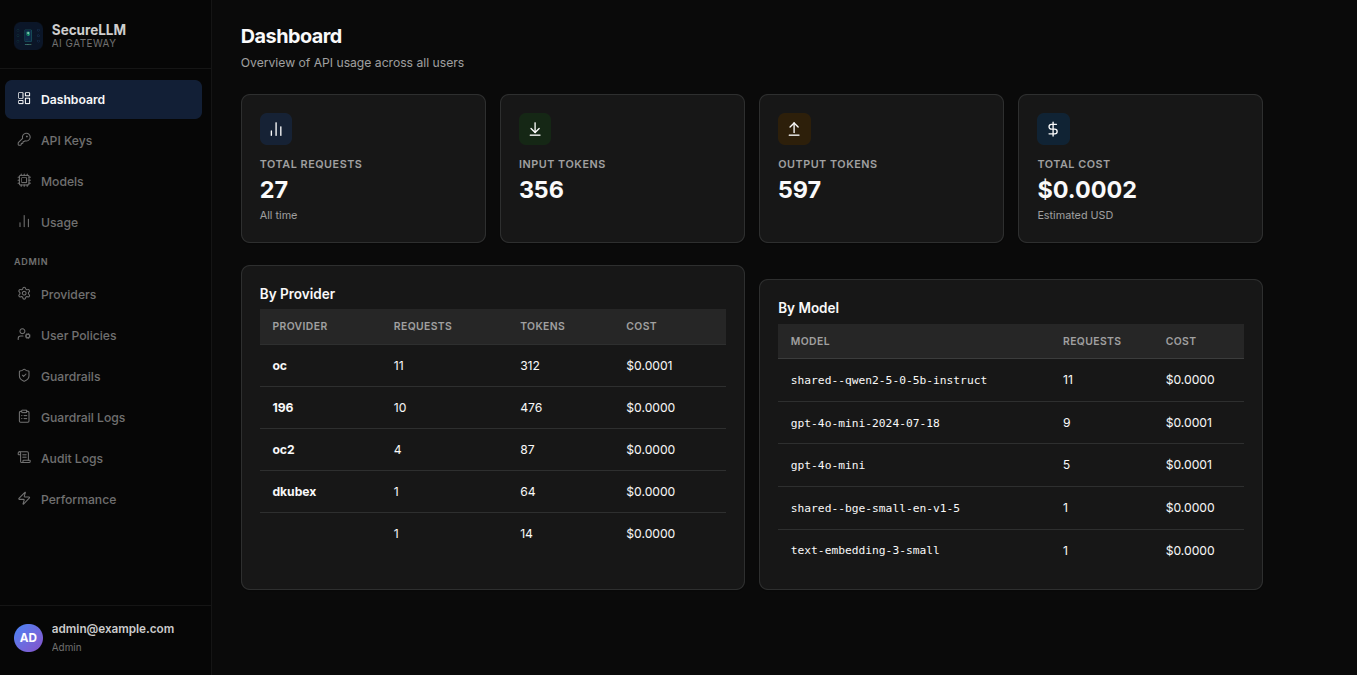
Total Requests — how many AI calls you have made
Input / Output Tokens — a measure of how much text was sent and received (tokens ≈ words)
Total Cost — estimated spend based on your requests
By Provider / By Model — tables showing which AI services and models you used most
Note: If you have admin access, the Dashboard shows usage for your entire organization, not just your own.
API Keys#
An API key is like a password that lets an application (a script, a tool, or an IDE plugin) talk to SecureLLM on your behalf. You create keys here and paste them into whichever tool needs them.
Creating a key:
Click API Keys in the sidebar.
Click Create Key.
Enter a descriptive name (e.g.,
my-vscode-pluginordata-pipeline).Click Create.
Copy the key immediately — it is only shown once. Store it somewhere safe (a password manager or
.envfile).
Revoking a key:
Find the key in your list.
Click Revoke.
Confirm the action.
Tip: If you suspect a key has been leaked or is no longer needed, revoke it right away. Revoking a key instantly stops any further requests made with it.
Models#
The Models page lists every AI model available to you through SecureLLM.
Use the search bar to find a specific model by name.
Use the Provider and Category filters to narrow the list (e.g., Chat, Reasoning, Embedding).
Click the copy icon next to a model name to copy its identifier — paste this directly into your code or tool.
Note: If an admin has restricted your access, you will only see the models and providers your organization has made available to you.
Usage (My Requests)#
The Usage page shows your request history — everything you or your keys have sent to SecureLLM.
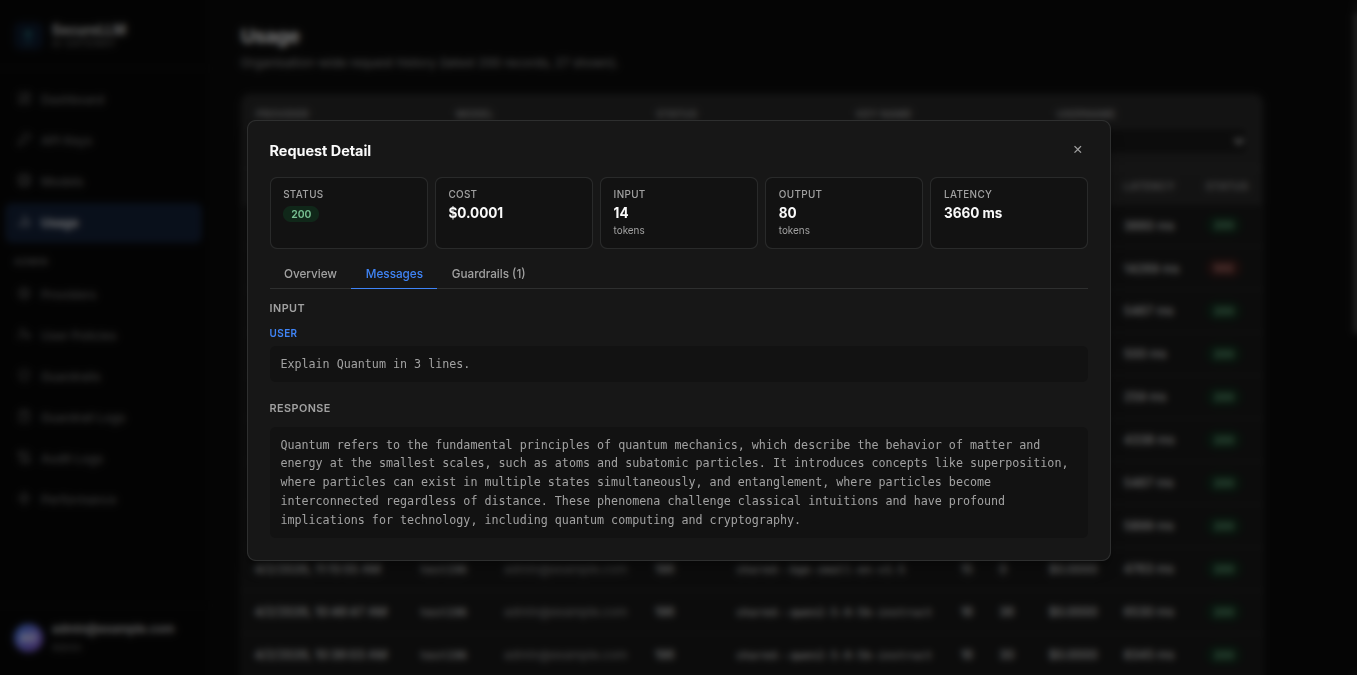
Use the filters at the top to narrow by provider, model, status, or API key name.
Click any row to open the Request Detail panel, which shows:
The exact messages sent and the AI’s response
Request status, cost, token counts, and latency
Any guardrail events triggered by that request