
Building Flows#
Flows are directed graphs of components. Each component performs a unit of work — loading data, calling an LLM, parsing output, etc. — and passes its result to the next component via typed connections.
The Canvas#
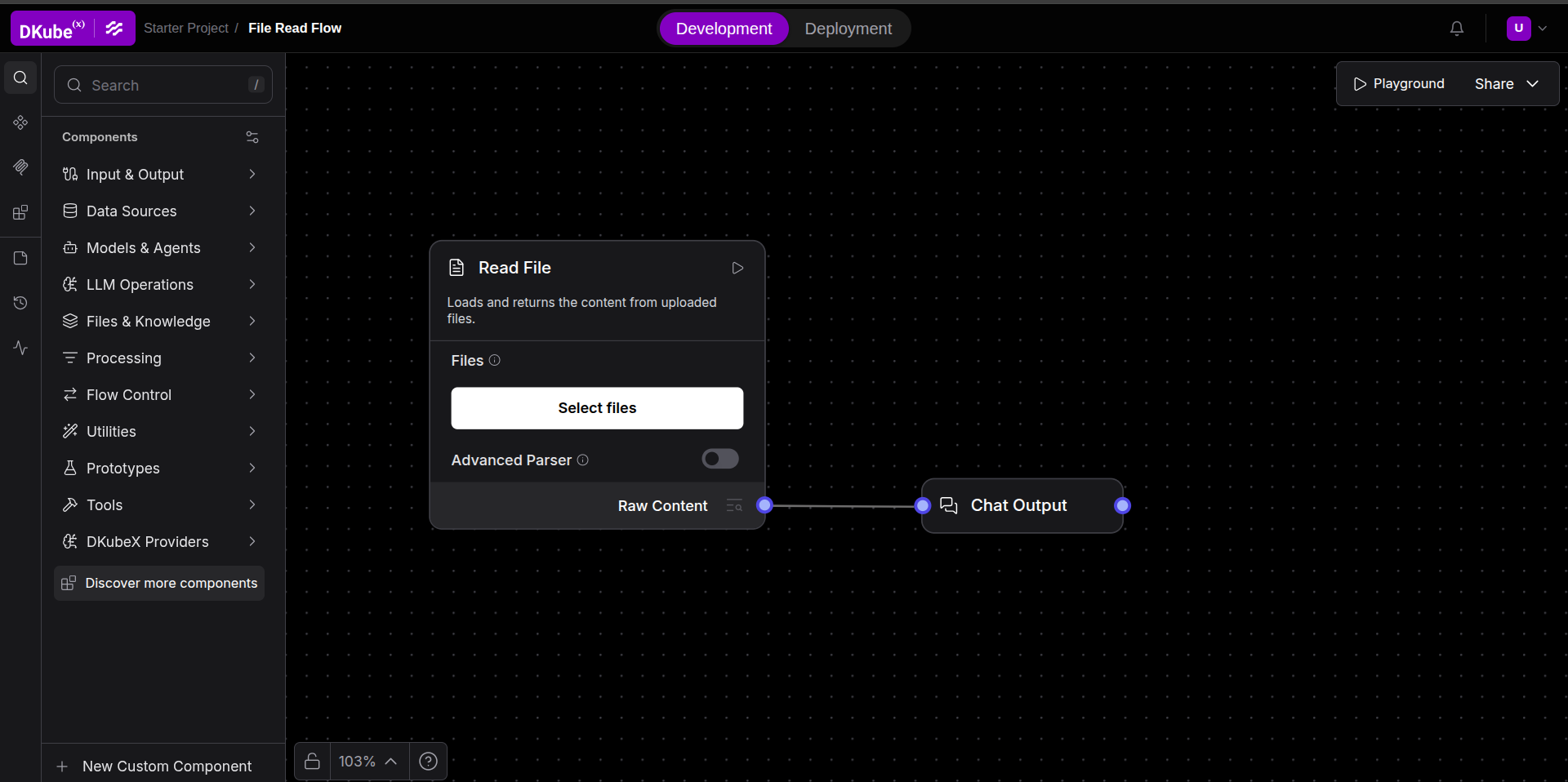
Drag-and-drop — Drop components from the sidebar onto the canvas.
Ports — Each component exposes typed input and output ports. Compatible ports share a colour. Hover over a port to see its type.
Edges — Drag from an output port to a compatible input port to connect components. Incompatible types will not connect.
Multi-select — Hold
Shiftand drag to select multiple components at once. UseCtrl/Cmd+CandCtrl/Cmd+Vto duplicate a selection.Pan and zoom — Scroll to zoom; click and drag the canvas background to pan. Use the minimap in the bottom corner for large flows.
Running a Flow#
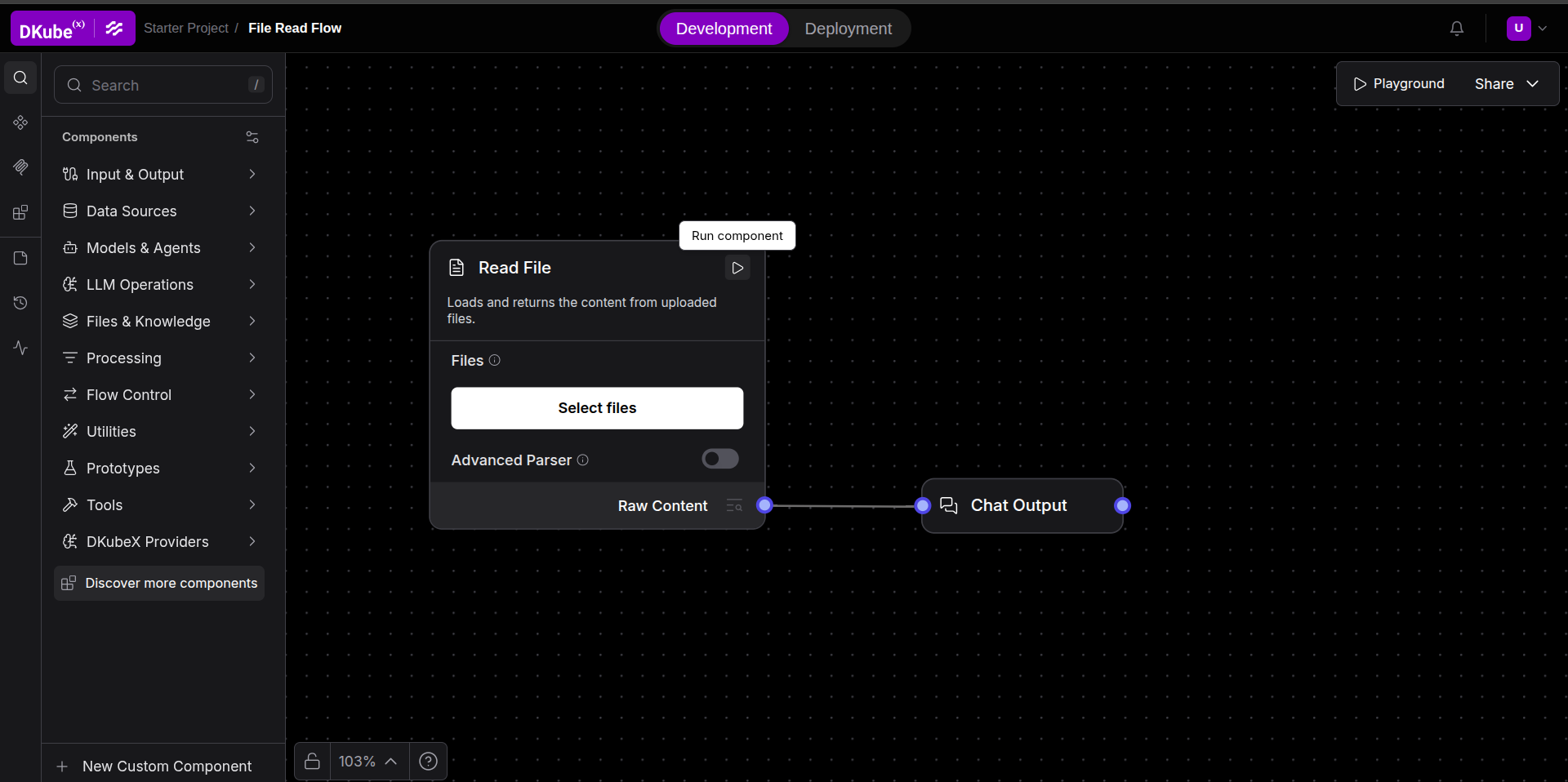
Click the Run Component icon on any individual component to execute the flow up to that point. The output appears inline on the component.
For chat flows, the Playground panel (chat interface) shows inputs and outputs in a conversational view.
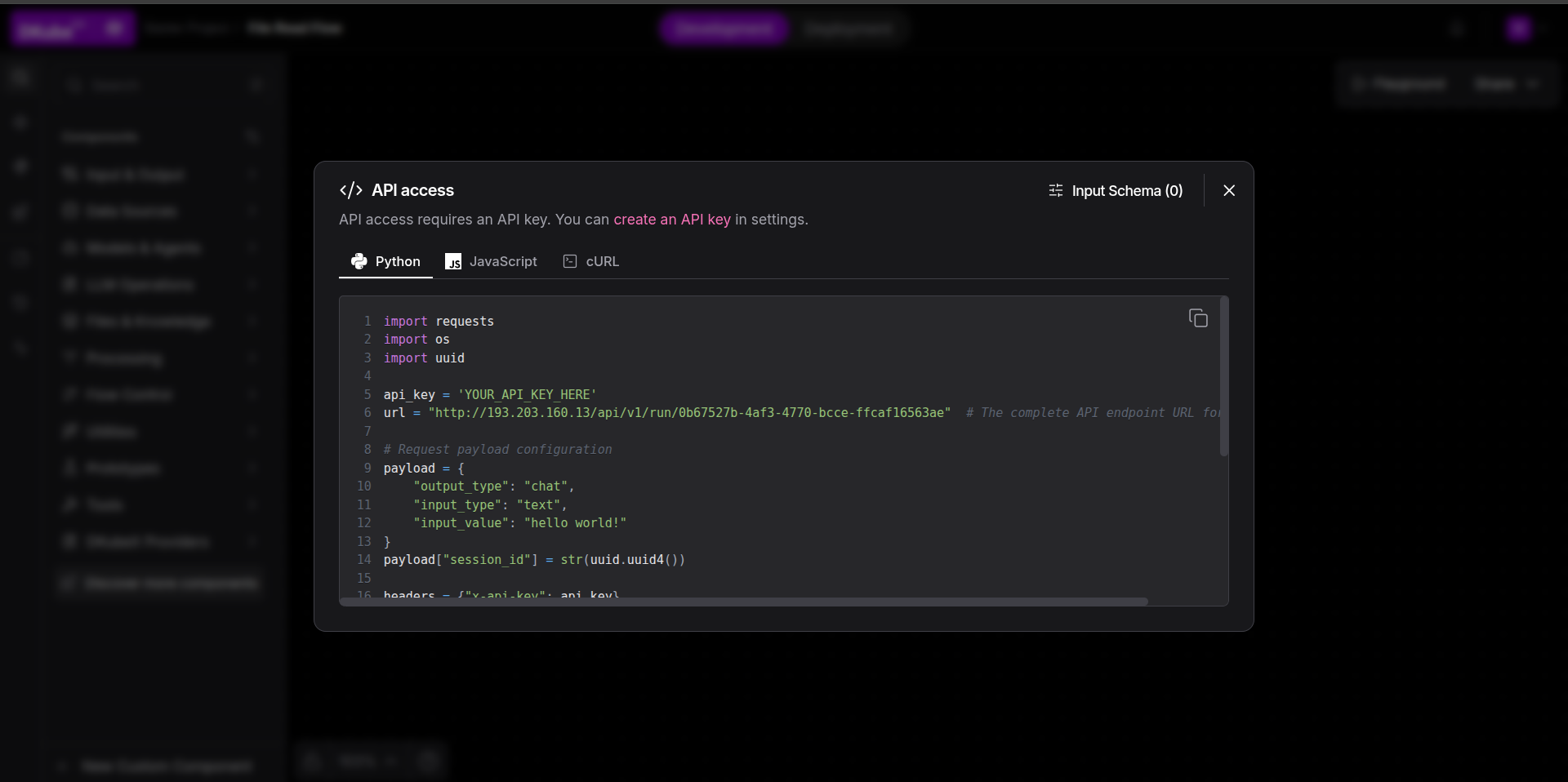
Flows can also be run using an API call. Once a flow is ready, execute it as an HTTP endpoint. For getting the API endpoint and schema, click Share -> API Access to find automatically generated Python, JavaScript or cURL snippets. The payload in the API request can be changed by altering the inputs from the Input Schema.
Configuring Components#
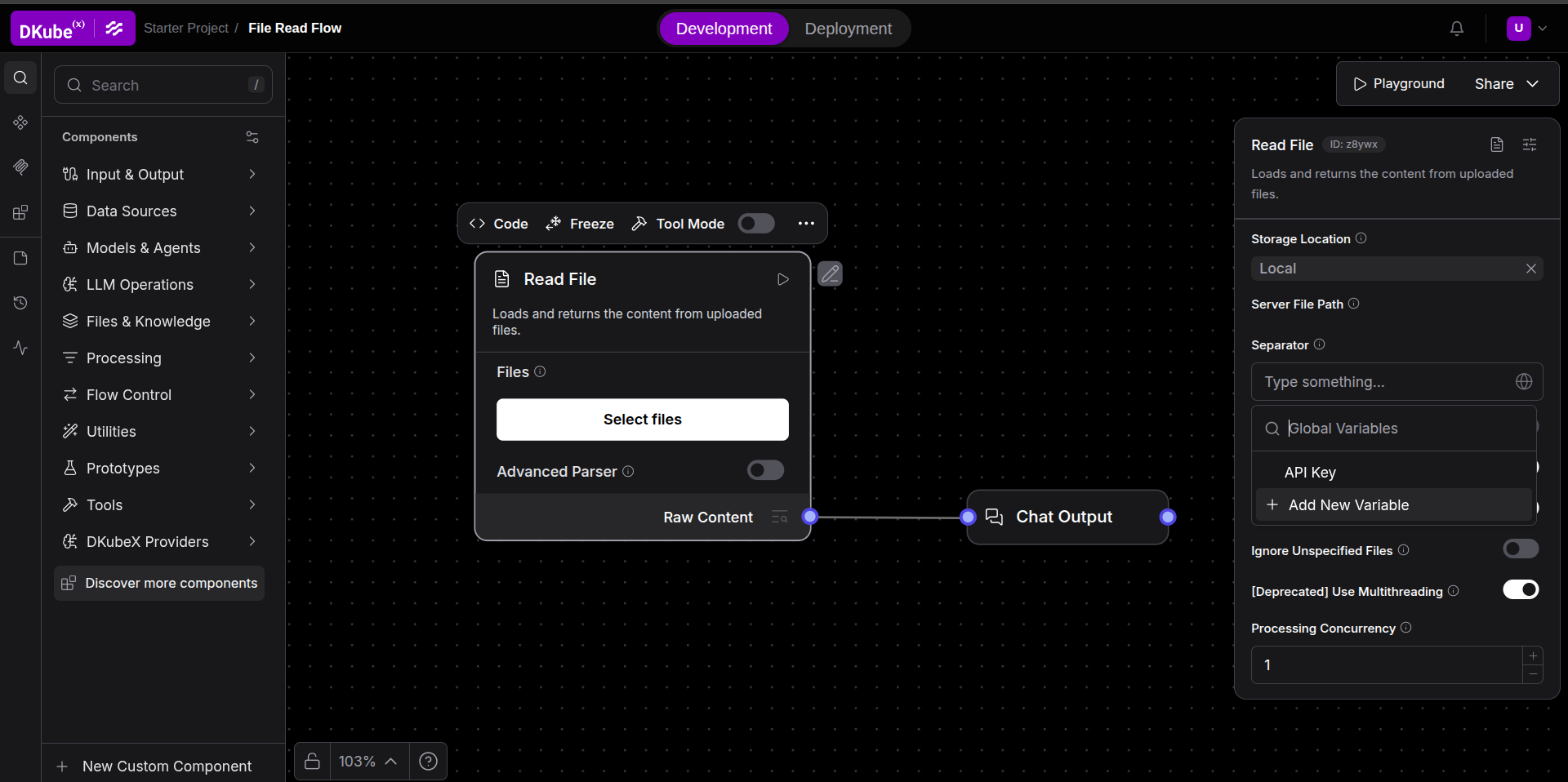
Click any component on the canvas to open its side panel on the right. The side panel contains the advanced fields.
Fill in required fields (marked with
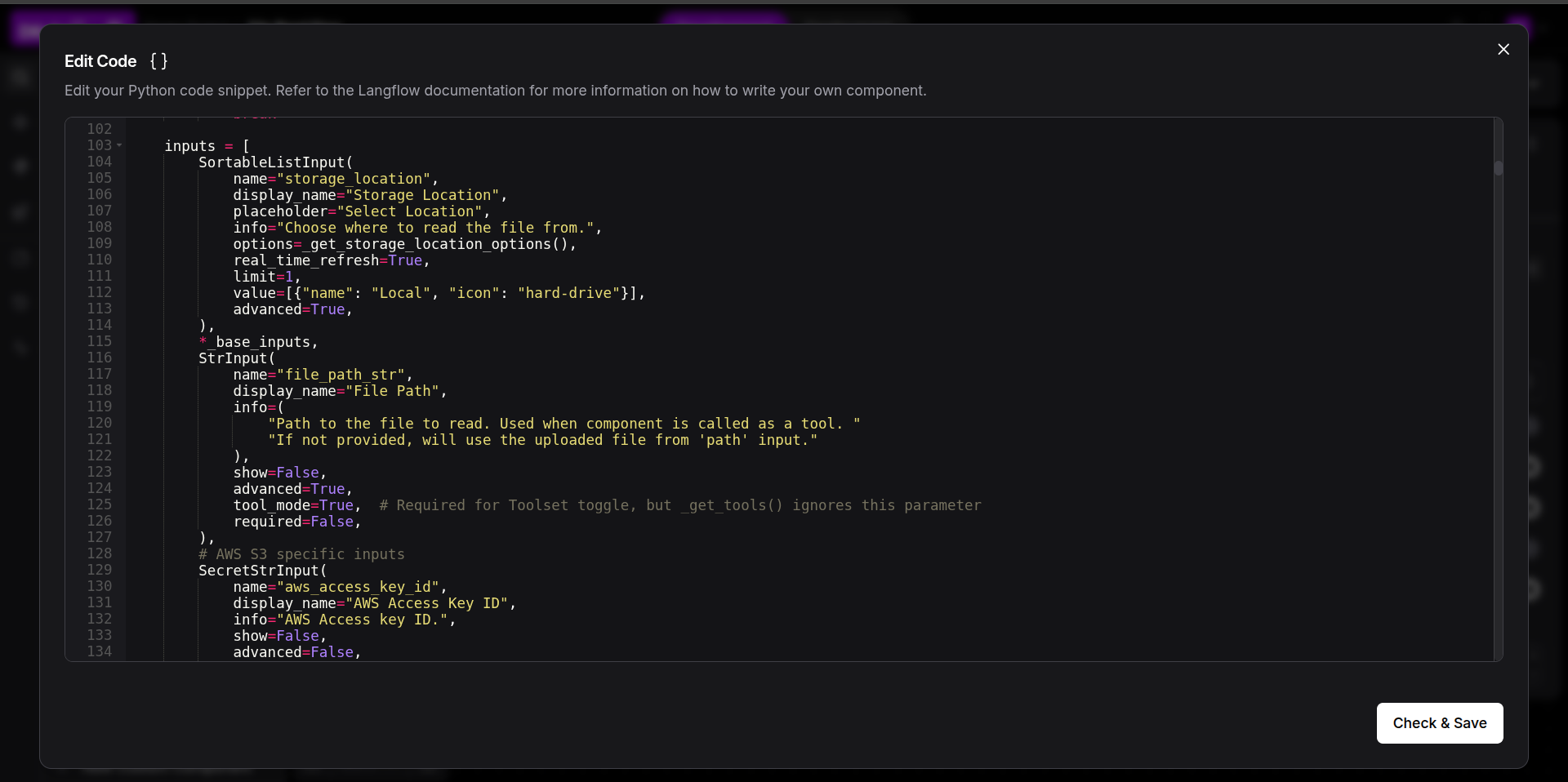
*).Use the Code tab to view the underlying Python class. This Python code can be altered to create a custom implementation.
Alter the code of an already existing component, or click on New Custom Component in the bottom left of the canvas to create your own custom component from scratch.
Some fields support Global Variable references — click the globe icon in a relevant field to select a stored global variable, instead of typing a value directly.
Variables and Secrets#
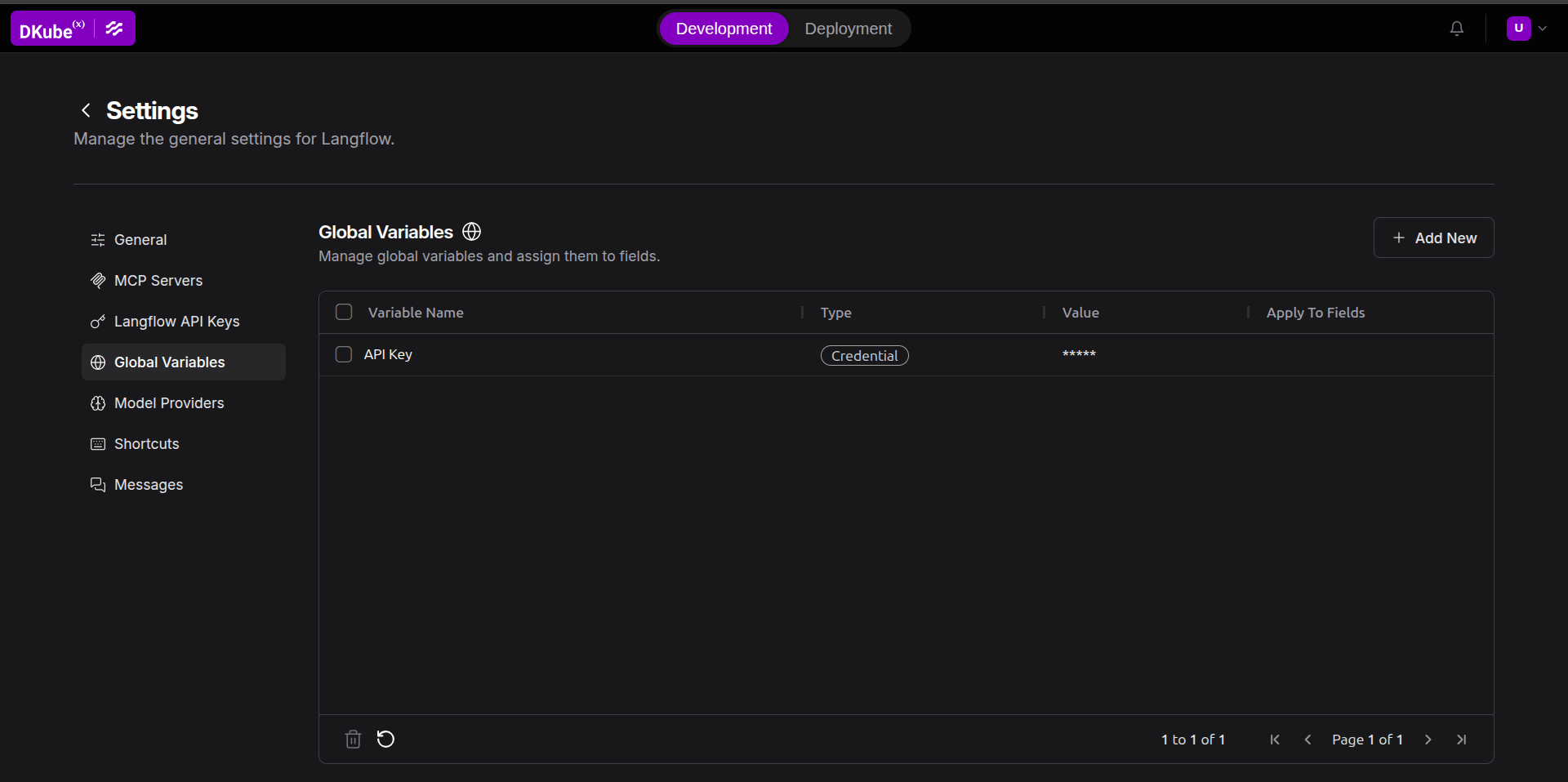
Use Settings → Global Variables (gear icon in the clickable button on the top right) to store reusable values and secrets such as API keys. Global variables are:
Encrypted at rest in the Langflow database.
Referenced from any component field via the variable picker.
Resolved and injected as environment variables when a flow is deployed.
Important: When deploying a flow that uses global variables, those variables must be defined in your settings before deployment. Missing variables will cause the deployment to fail with an error listing the undefined names.
Flow Properties#
Every save creates a new revision automatically.
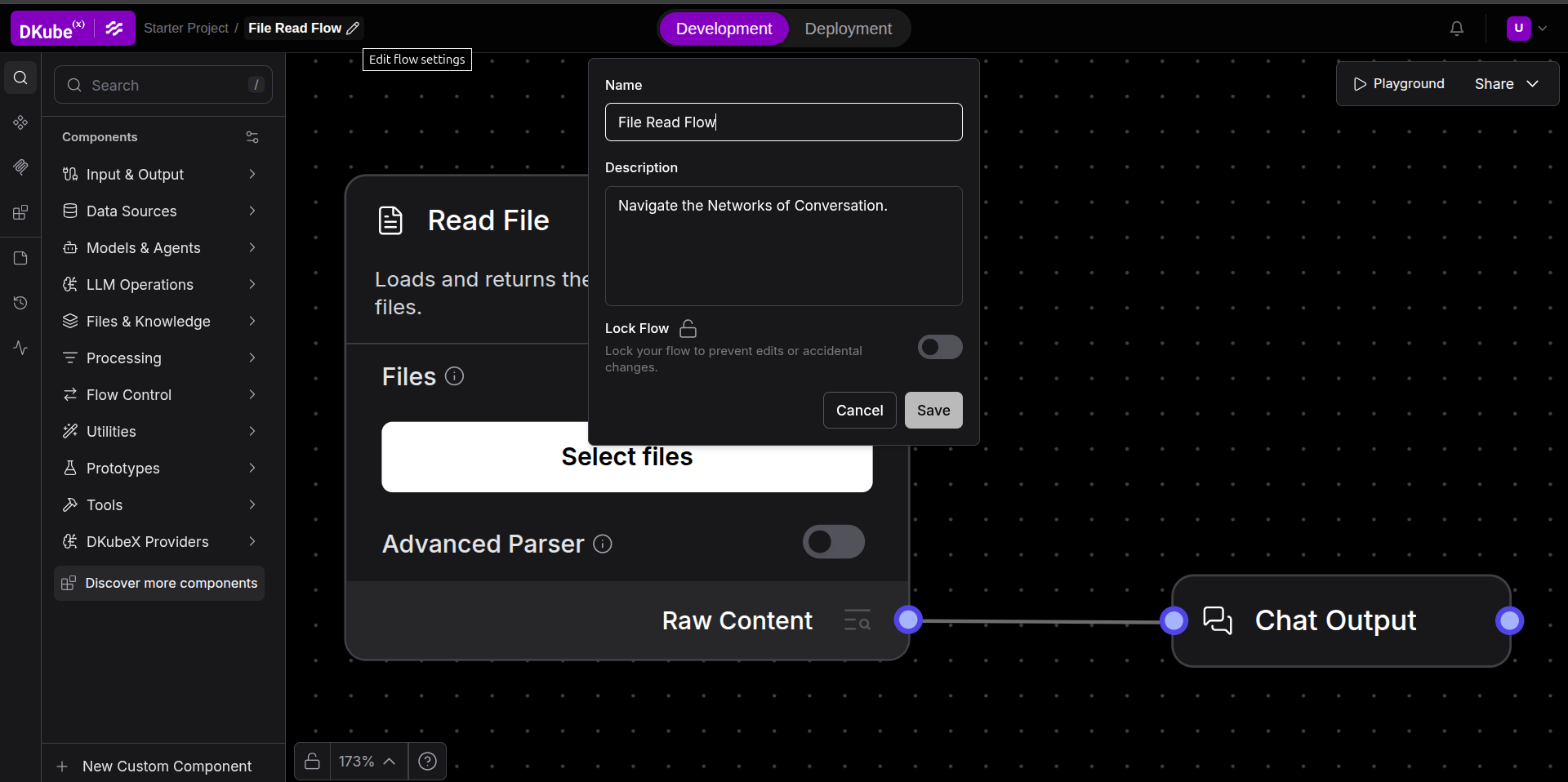
Open the flow menu (pencil icon in the header, next to the flow name) and set the Name and Description of the flow. The flow can also be locked to prevent further changes.
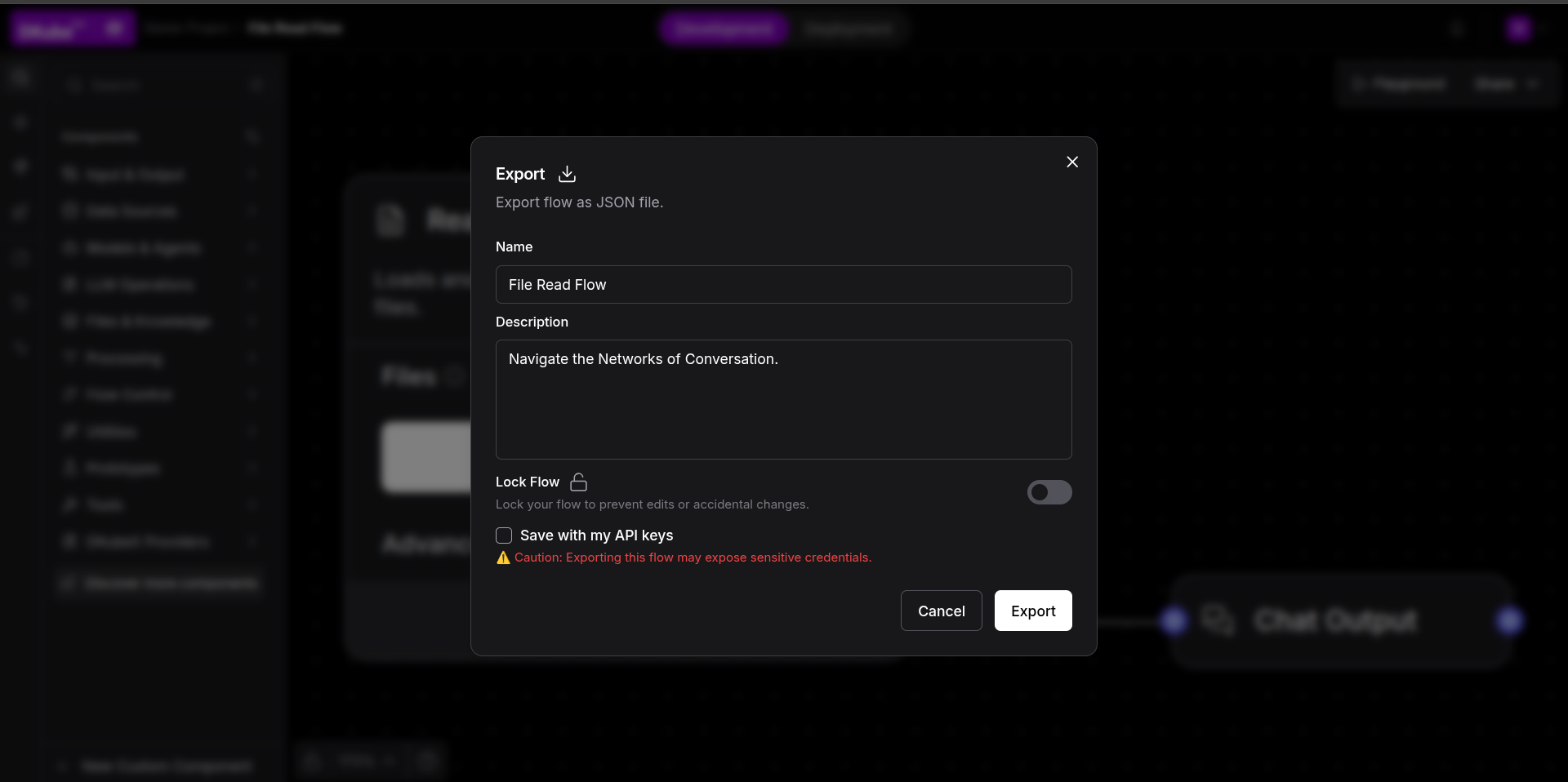
A flow can also be exported as JSON via the export menu. Click on Share → Export to export the flow, share it with others and import it into an instance of Langflow.
Import a JSON flow via New Flow → Import.
Organizing Flows into Projects#
Flows live inside projects (folders). Create a project from the main flows page.
See also#
Components — full component catalog and DKubeX Providers.
Deploying Flows — promote a flow to a production endpoint.