Workflows#
These end-to-end walkthroughs take you from the catalog to a running model for each of ModelStudio’s three deployment tracks. For the full set of fields and options, see Deploying Models.
Deploying Your First LLM Model#
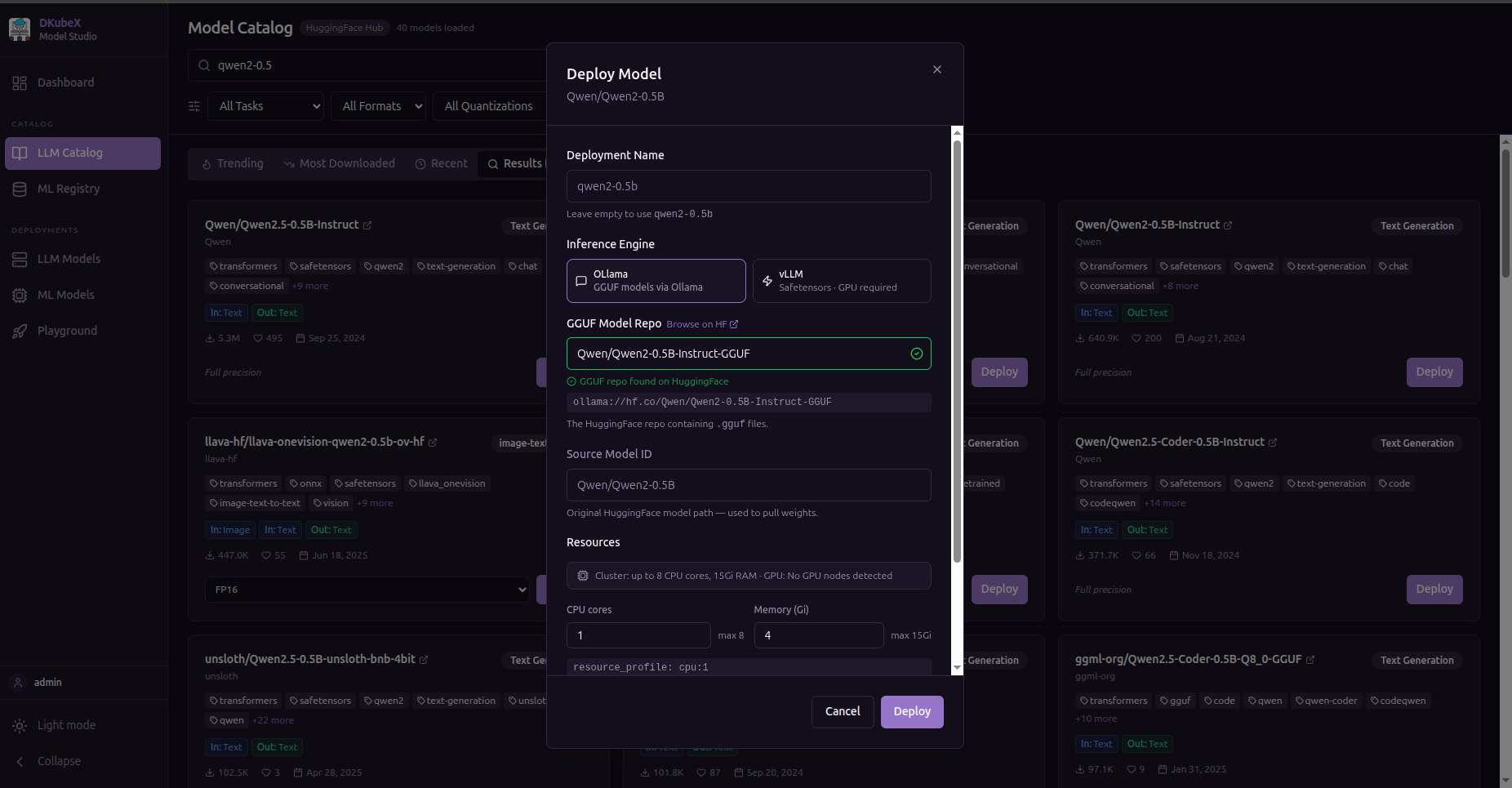
Go to the LLM Catalog page.
Search for a model (e.g.
qwen2).Click Deploy on a model card.
In the deploy form, choose:
Quantization (e.g.
Q4_K_Mfor smaller footprint)Resource Profile (CPU or GPU tier)
Replicas (number of serving instances)
Scope —
Private(only you) orShared(all workspace users)
Click Deploy.
The model appears in LLM Models with status
Pending, then progresses toRunning.
Tip: Deploying takes a few minutes while the model image is pulled and pods start. Use the status column to track progress.
Deploying Your First ML Model#
Go to the ML Registry page.
Select the MLflow tab (or HuggingFace ML for HuggingFace-sourced models).
Click Deploy on a model.
In the ML deploy form, confirm or set the model format, resource requests, and replica counts.
Click Deploy.
The model appears in ML Models with status
Pending, then transitions toRunning.
Your First NVIDIA NIM Model#
Requires an NGC Personal API Key. Get one at org.ngc.nvidia.com/setup/personal-keys.
Go to Settings → NGC API Keys and click Add Key.
Paste your NGC Personal API Key and give it a name. The key is saved securely and shown only as a masked hint.
Go to the Catalog page and select the NIM tab.
Browse or search for a model (e.g.
llama).Click Register on a model card.
In the registration form, set GPU count and replicas (defaults are usually fine). Model weights are downloaded to cluster storage on first registration — expect 15–30 min for LLM models.
The NGC API Key you added in step 2 is used automatically for both NGC catalog metadata and the in-cluster image-pull secret.
Click Register.
The model appears in the model list and shows a status banner in the Playground while deploying. Once status is Running, the model is available for inference.