
Using Your Workspace#
Once your workspace is Running, its apps appear in Apps, and you can work with files, run your own services, and connect over SSH.
Using Apps#
Your workspace ships twelve apps. Each one appears as its own tile in Apps while the workspace is running.
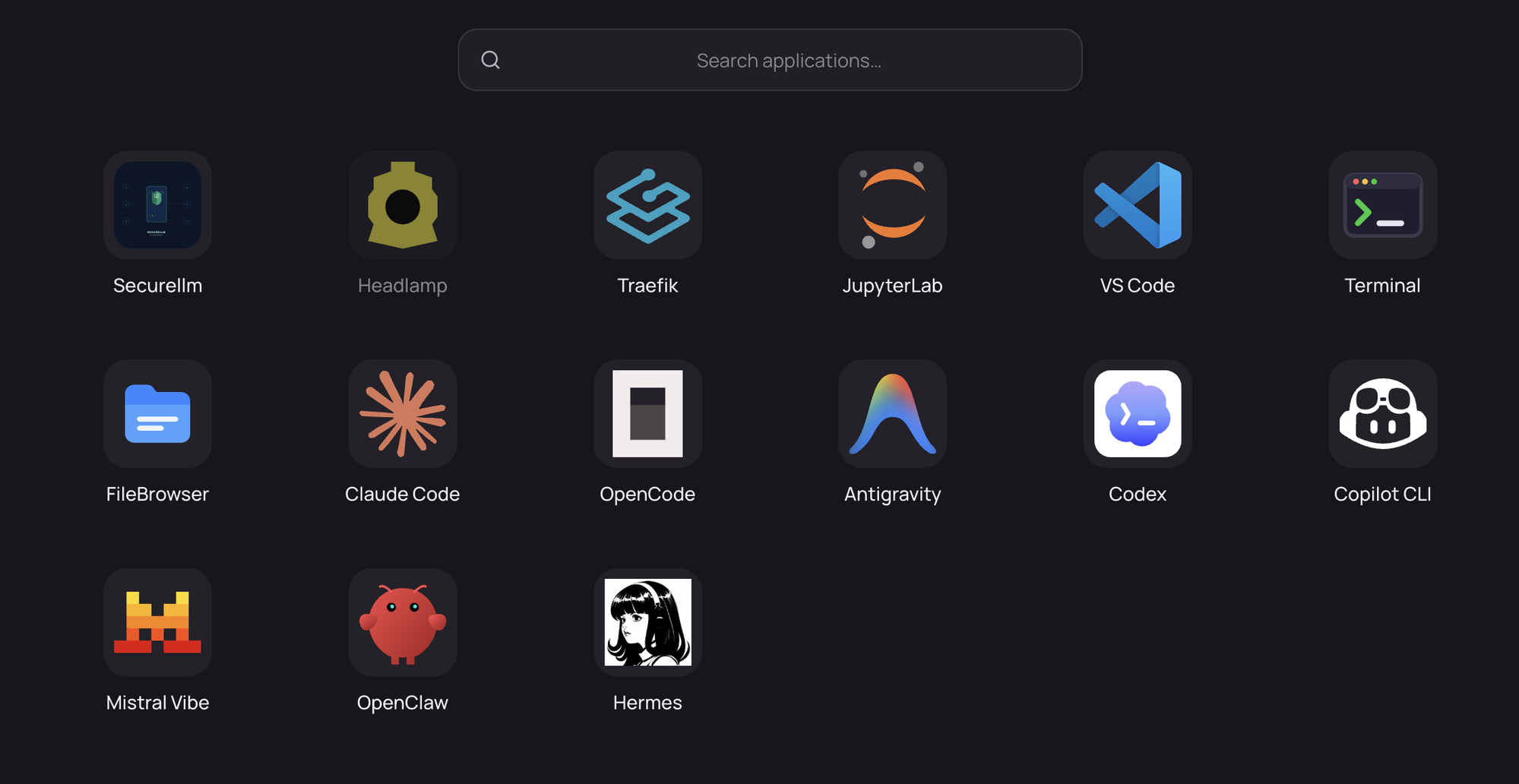
App |
What it is |
|---|---|
JupyterLab |
Notebooks and interactive Python |
VS Code |
code-server IDE in the browser |
Terminal |
Interactive bash shell |
FileBrowser |
Browse and manage your files |
Claude Code |
Anthropic’s agentic coding CLI |
OpenCode |
Open-source terminal coding agent |
Antigravity |
Google’s terminal coding agent ( |
Codex |
OpenAI’s coding agent CLI |
Copilot CLI |
GitHub Copilot in the terminal |
Mistral Vibe |
Mistral’s coding agent CLI |
OpenClaw |
Multi-model agent gateway and web UI |
Hermes |
Nous Research’s agent |
Pi |
Minimal, extensible coding agent harness |
The nine coding agents have their own page — see Working with AI agents.
Opening an App#
Click its tile in Apps. The app opens inside DKubeX, so you stay in the same browser tab.
Apps are started on demand: the first time you open one, it takes a few seconds to launch and shows a loading screen, then appears. Afterwards it opens immediately. An app you never open never runs, which is why an idle workspace costs almost nothing.
Every app you open keeps running while you use others, so switching between JupyterLab, a terminal and an agent does not lose your state.
Note: Apps are reached over a secure, authenticated route. You never manage ports or SSH tunnels to open them.
Workspace Files#
Your files live in your home directory, which is on persistent per-user storage. Anything you save there survives restarts, and survives uninstalling and reinstalling your workspace. See What persists.
Use FileBrowser for a graphical view, or the Terminal for a shell.
To move files between your laptop and the workspace:
Use FileBrowser’s upload and download buttons, or
Use
scporrsyncover SSH.
Running Your Own Services#
If you start a server inside your workspace — a dev server, an API, a dashboard — you can reach it through your workspace URL by appending its port:
<your-workspace-url>/<port>/
For example, start something on port 3000 and open <your-workspace-url>/3000/.
This works for any port you have listening, with no configuration. Two caveats:
The app must serve relative asset and redirect URLs, or be told it is running under a sub-path. Apps that assume they are at the root will load a blank or broken page.
Nothing is started for you here — if the port is not listening you get a gateway error.
SSH Access#
You can connect to your workspace from your own terminal or from an IDE’s remote-development feature.
Go to Settings → SSH access. It shows a ready-made command, plus the host, port and username individually.
Add your own public key. Open the Terminal app and append it to
~/.ssh/authorized_keysin your home directory:echo "ssh-ed25519 AAAA... you@laptop" >> ~/.ssh/authorized_keysConnect using the command shown on the settings page.
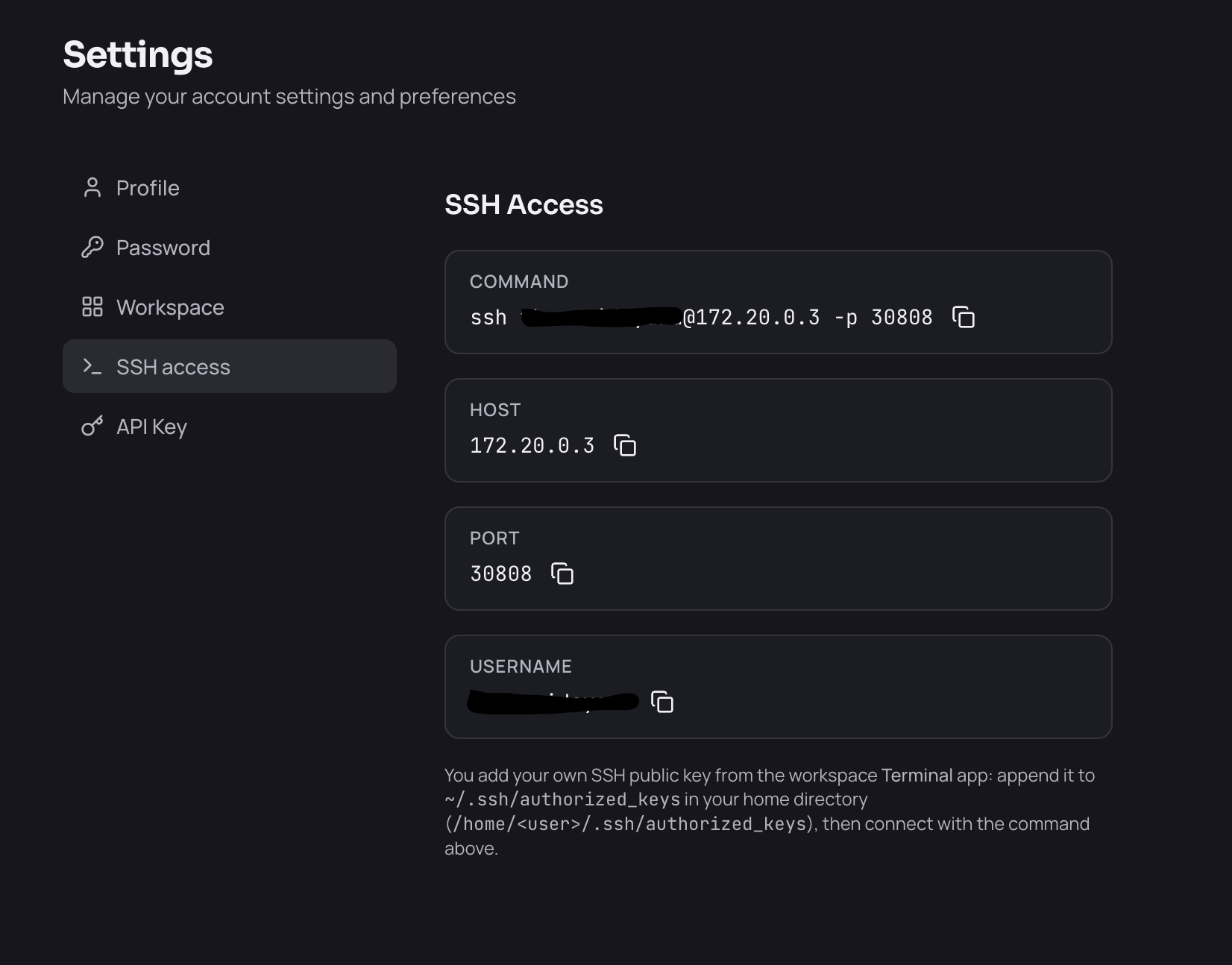
Access is by SSH key only — there is no password login. Because ~/.ssh/authorized_keys is in your home directory, your key persists across restarts.
Note: If Settings → SSH access says SSH is not available, make sure your workspace is Running, then reload the page.
Environment Variables#
To set environment variables for your workspace, go to Settings → Workspace → Environment variables, add name/value pairs, and click Apply and restart.
Names are upper-cased automatically. Applying restarts your workspace, so save your work first.
A few names are reserved by the workspace and rejected: HOME, UUID, WORKSPACE_NAME, USERNAME, WORKSPACE_PUBLIC_PREFIX, WORKSPACE_SYSOVERLAY_DIR, DEFAULT_MODEL, SECURELLM_API_KEY, and the MLFLOW_* variables.
Getting Access to Other Apps#
Your workspace is private to you and cannot be shared. Other applications in the App Store are granted by an administrator.
If you open the App Store and find an app you cannot install, use Request access on that app. An administrator reviews the request and approves or denies it; once approved, the app appears in Apps.