
Using Claude Code in DKubeX Workspace with DKubeX or Cloud Provider Models#
DKubeX Workspace ships with several coding agents built in — including Claude Code, Codex, Copilot CLI, OpenCode, Antigravity, and Mistral Vibe. Instead of a Claude subscription, you can run Claude Code in DKubeX Workspace against a model served through the platform — either a model you deployed in Model Studio or a model from a cloud provider (such as Anthropic, OpenAI, or OpenRouter) added in SecureLLM. The workspace injects your chosen model into the coding agent, and all requests are governed and billed through the platform.
Use this flow when you want the coding agent to run on platform-served models. To use your own Claude subscription instead, see Using Claude Code in DKubeX Workspace with a Claude subscription.
Prerequisites#
DKubeX Workspace, installed from the app catalog.
At least one model available to your DKubeX user key, provided by either:
a model deployed in Model Studio, or
a cloud provider added in SecureLLM (such as Anthropic, OpenAI, or OpenRouter), which exposes that provider’s models to you.
Step 1 — Make a model available#
Choose one of the following so a model shows up under your key:
Deploy a model in Model Studio — deploy a coding-capable model and wait until it reaches the running state. See Deploying models on DKubeX using Model Studio.
Add a cloud provider in SecureLLM — add a provider such as Anthropic, OpenAI, or OpenRouter so its models become available to your key. See Configuring and enabling AI providers in SecureLLM.
Step 2 — Set the workspace default model#
The workspace default model is what the coding agent uses. Open Profile → Settings → Workspace. The Default model starts at None, which injects no model settings and lets each agent use its own defaults.
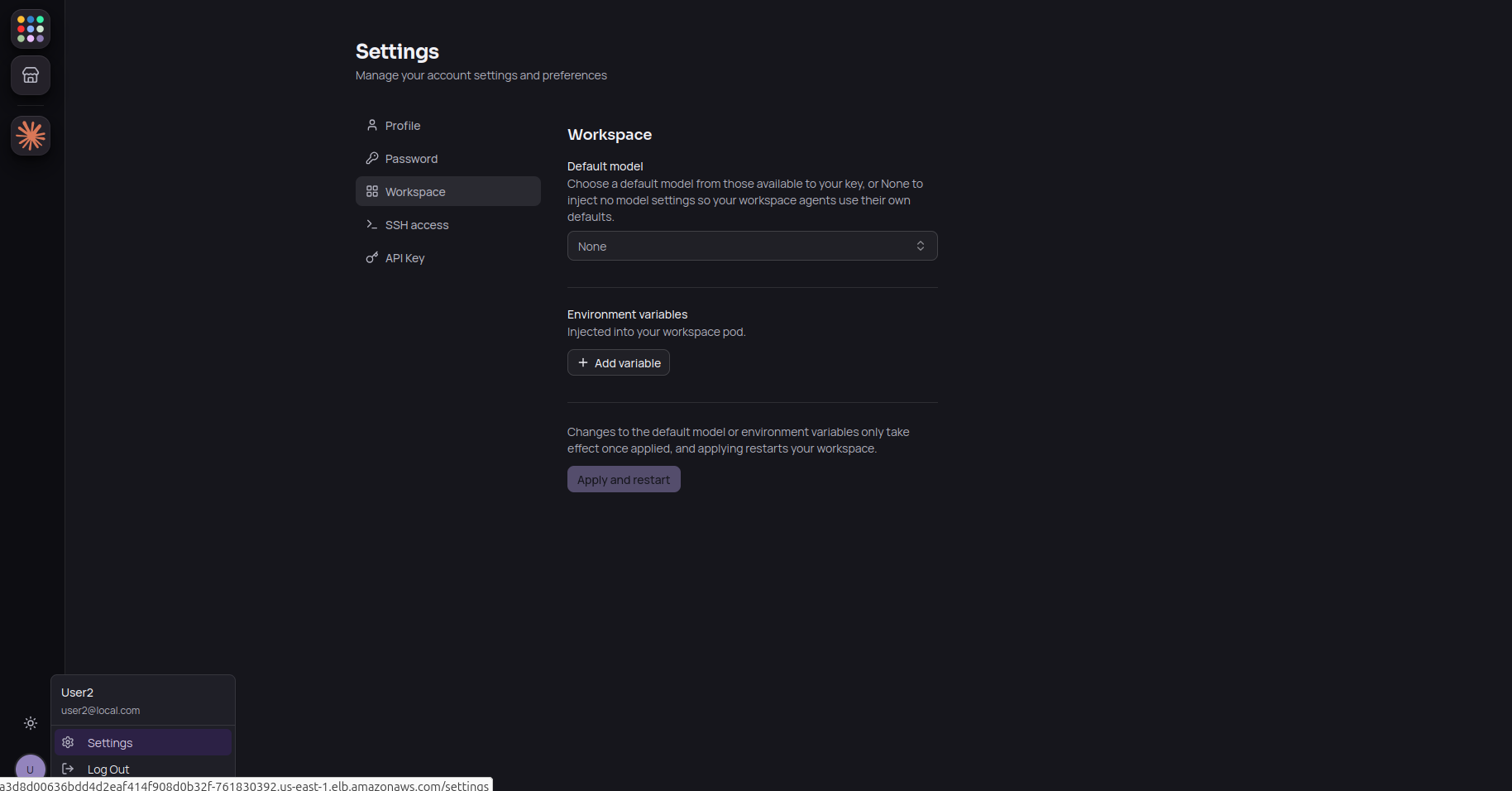
Workspace settings — the default model starts at None.#
Open the Default model dropdown and pick a model. The list shows the models available to your
key — DKubeX-deployed models appear under the dkubex/ prefix, and cloud-provider models under
their own provider prefix (for example, anthropic/, openai/, or openrouter/). Choose a
coding-capable model.
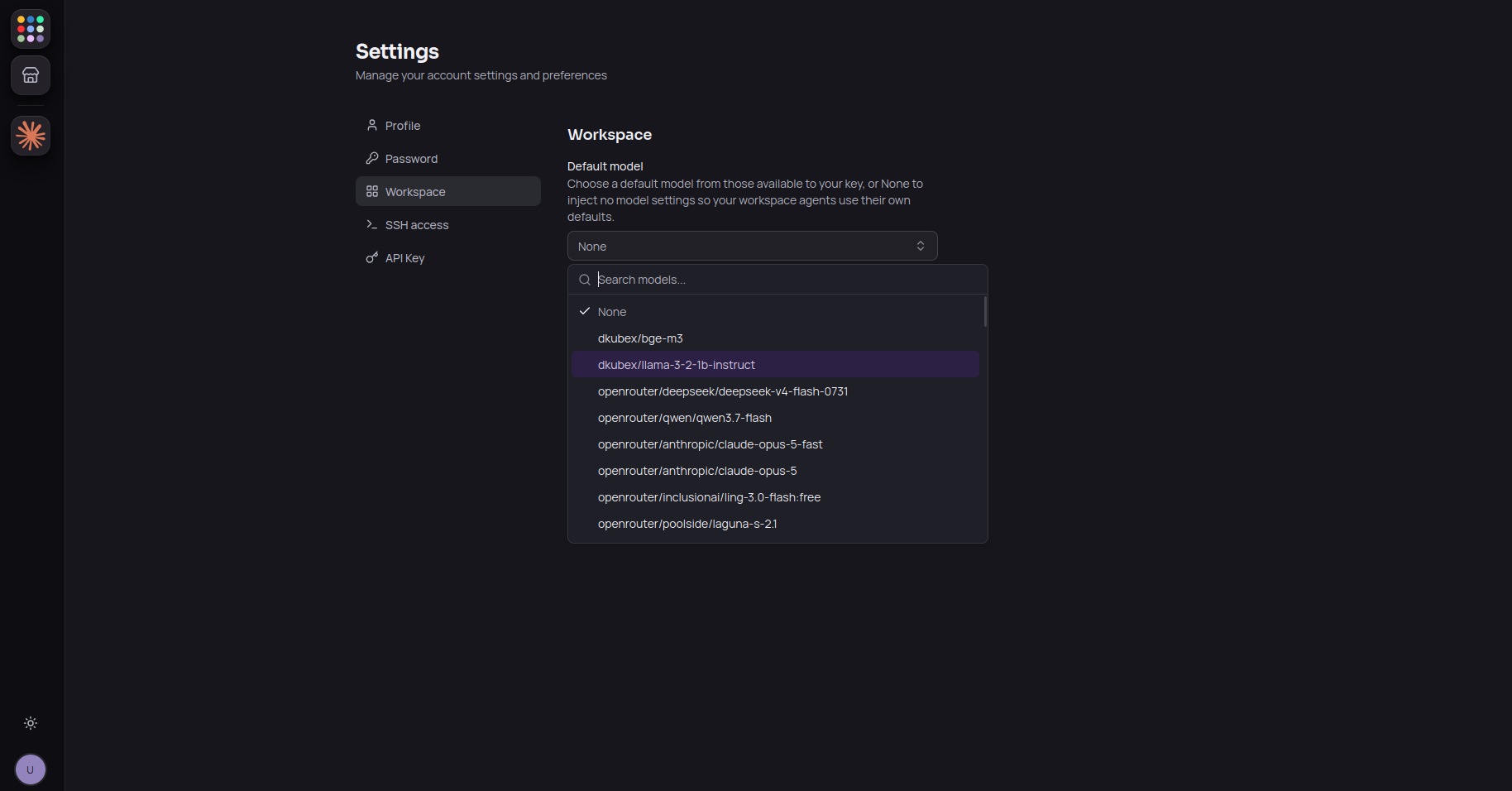
Pick a model from those available to your key — dkubex/ for deployed models, and each cloud provider under its own prefix.#
With the model selected, click Apply and restart. Applying restarts your workspace so the new model settings take effect.
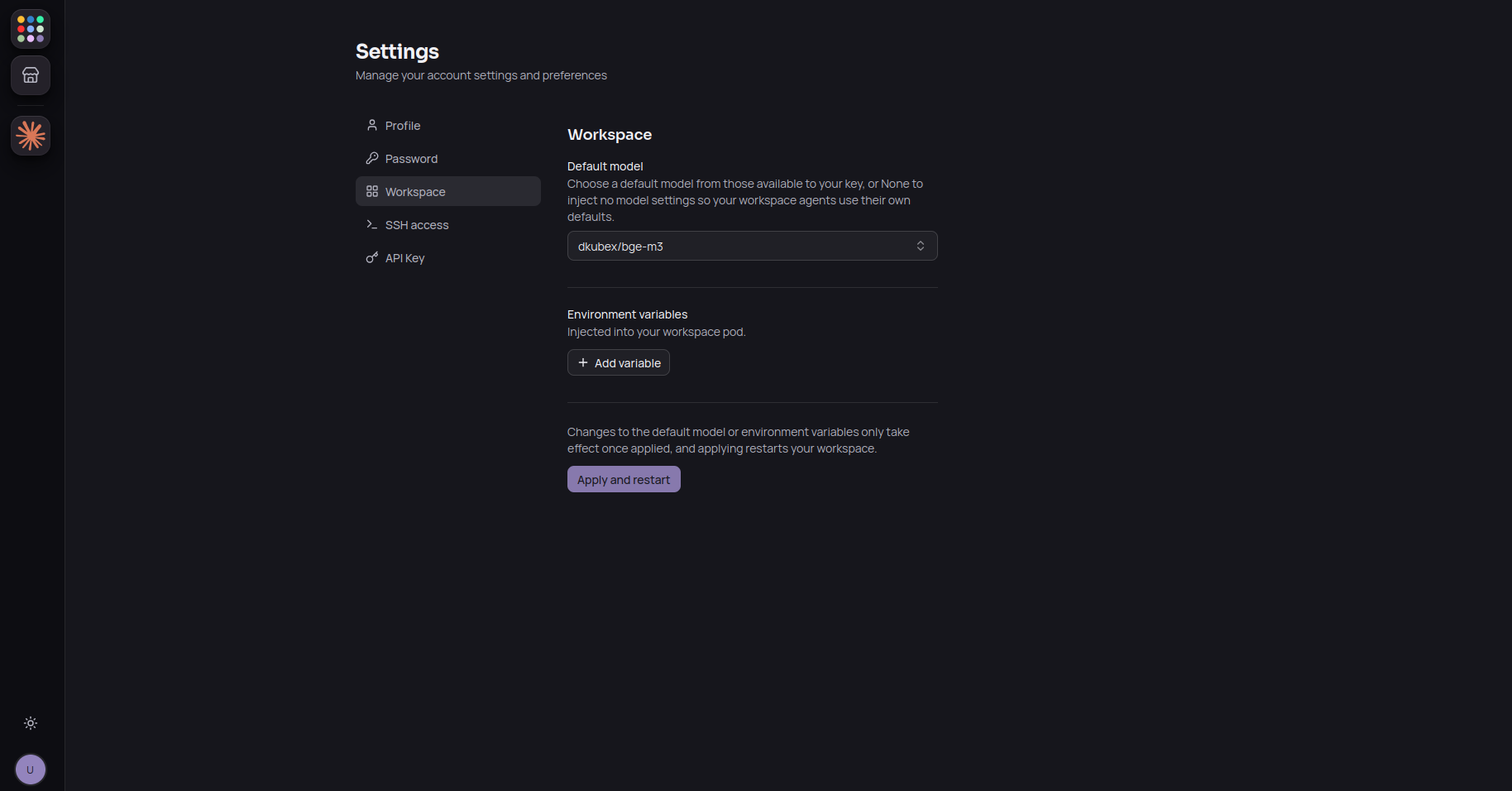
The selected default model. Click Apply and restart to roll it out.#
Step 3 — Open Claude Code and confirm the model#
Wait for the workspace pod to finish restarting, then open Claude Code. Run the /model command
to confirm which model the agent is using — you should see your default model listed as the active
model.
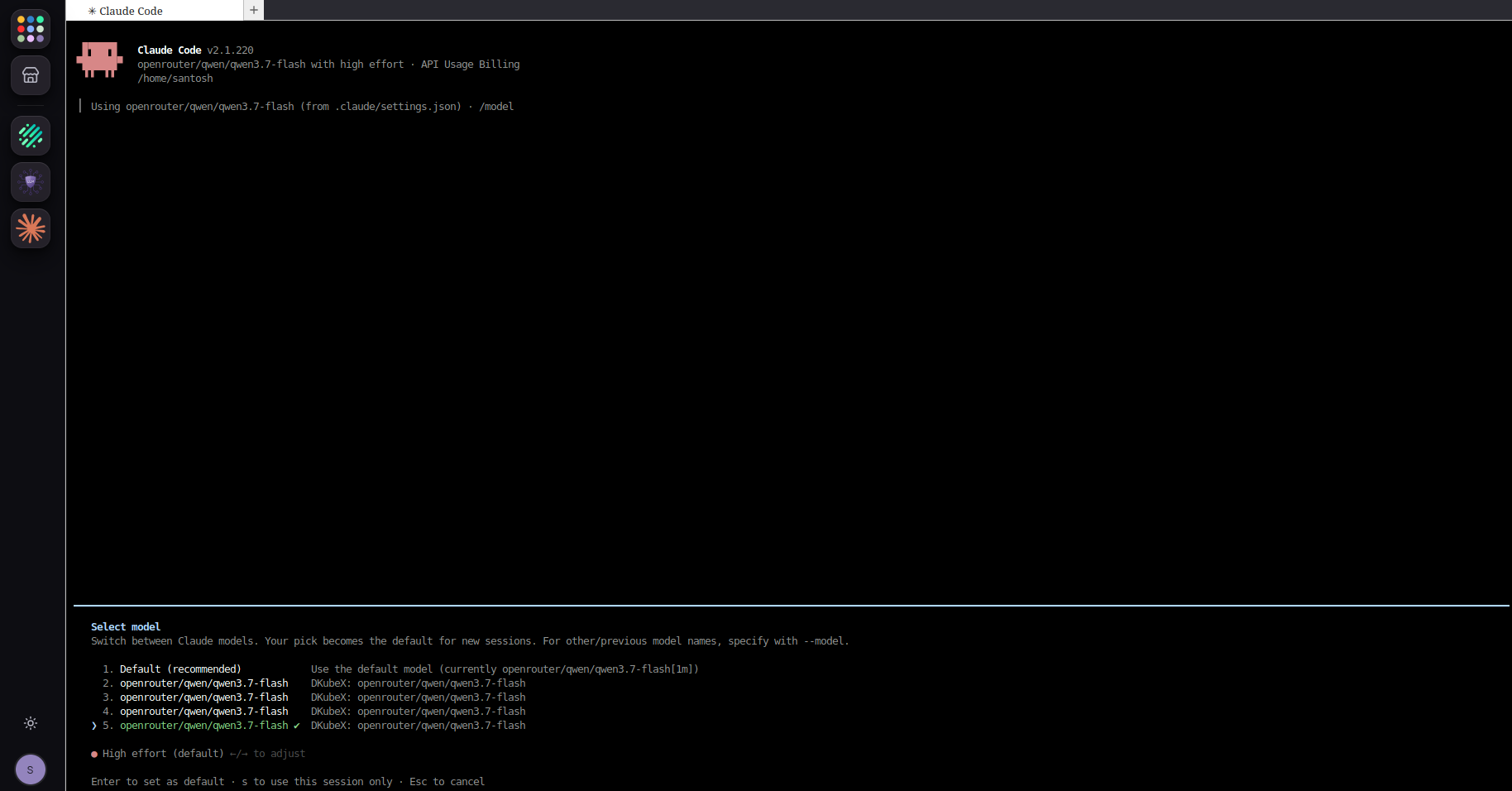
Run /model to confirm the active model in Claude Code.#
You can change the model at any time from within the agent using the /model command.
Note
All requests routed through the models are recorded by SecureLLM and can be monitored in its Usage tab.
Reverting to your Claude subscription#
To go back to your Claude subscription, open Profile → Settings → Workspace, set the Default model to None, and click Apply and restart. Once the workspace restarts, Claude Code returns to your original Claude subscription login. See Using Claude Code in DKubeX Workspace with a Claude subscription.
Troubleshooting#
No models in the dropdown: confirm a model is deployed and running in Model Studio, or that a cloud provider is added in SecureLLM, so a model is available to your key.
/modelstill shows the old model: make sure you clicked Apply and restart and waited for the workspace pod to finish restarting.Agent behaves poorly: pick a coding-capable model — small embedding-only models are not suited to driving a coding agent.
Next steps#
With Claude Code running, have it build and host an app straight from your workspace — see Building and hosting an app in DKubeX Workspace with a coding agent.